
Setting up the LONGER Orange 4K resin 3D printer in CHITUBOX requires the correct plugin and printer configuration files. With the official CHITUBOX plugin and LONGER’s default profiles, you can create compatible slicing files and use suitable exposure settings for more stable resin printing.
This guide explains how to install the Orange 4K plugin, import the printer configuration, and use the recommended parameters for both Orange 4K Mono and Orange 4K Color models.
Quick Setup Overview
To configure the LONGER Orange 4K in CHITUBOX:
- Download the correct .CHplugin file for your operating system.
- Import the plugin through the CHITUBOX plugin menu.
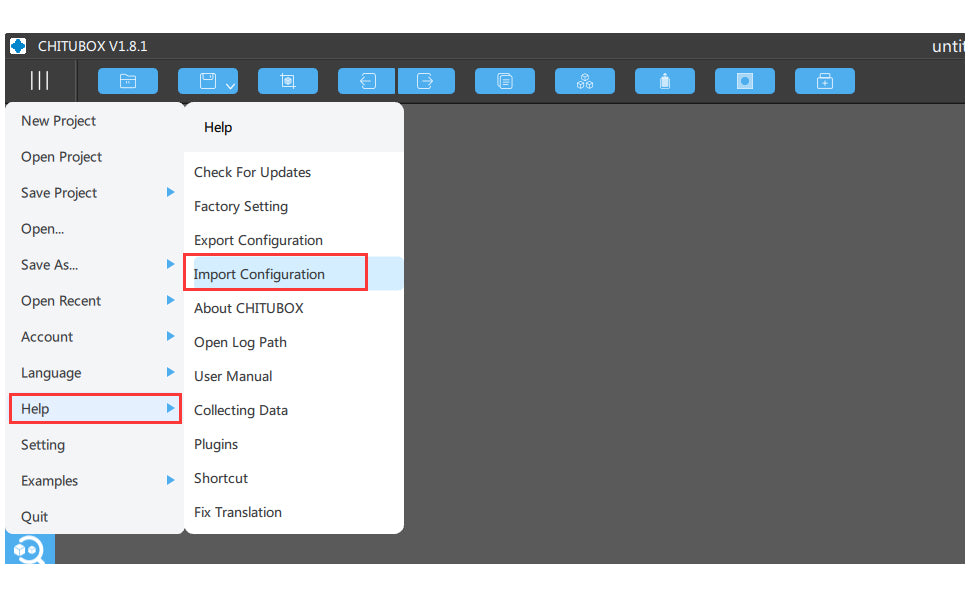
- Import the official Orange 4K configuration file.
- Use LONGER’s default printing parameters as a starting point for resin settings.
After completing these steps, CHITUBOX will be ready to generate compatible slice files for the Orange 4K printer.
Why Install the Orange 4K Plugin and Configuration?
CHITUBOX needs the correct printer profile and plugin to work properly with the LONGER Orange 4K. Without the proper setup, you may experience:
- Slice files that cannot be used correctly
- Incorrect resin exposure settings
- Reduced print quality
- Increased print failures
Using the official plugin and configuration helps ensure that the printer settings match the machine specifications, especially for users who are new to resin 3D printing.
Before You Start
Requirements
- LONGER Orange 4K or Orange 4K Mono 3D printer
- CHITUBOX installed on your computer
- Internet connection for downloading plugins and configuration files
- Official LONGER Orange 4K configuration files
- Administrative access to your computer
Precautions
- Use only official plugin and configuration files
- Close unnecessary software before installation
- Do not rename plugin files
- Do not modify exposure values initially
- Follow official machine specifications or instructions
Step 1: Install the Plugin for Orange 4K in CHITUBOX
Action
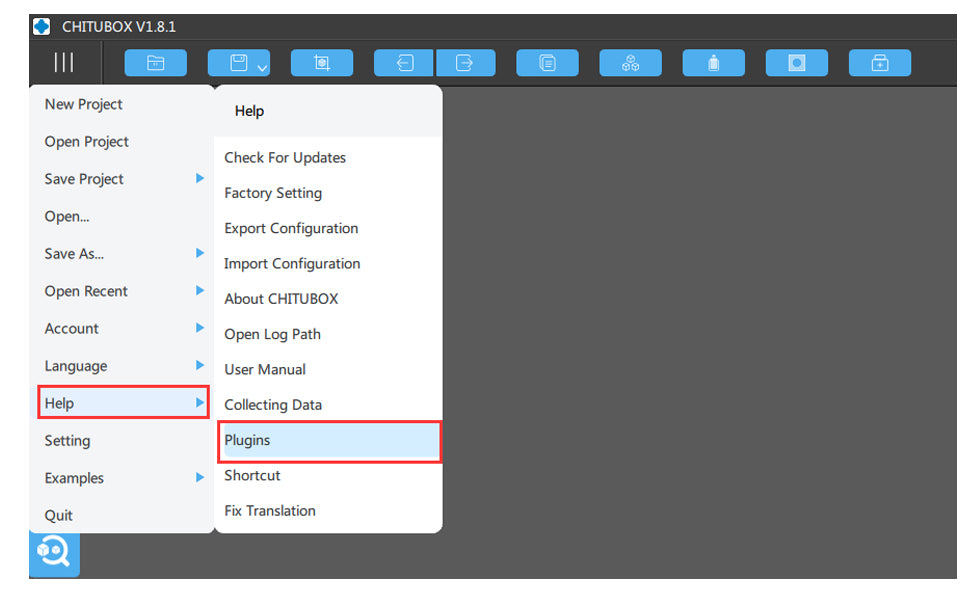
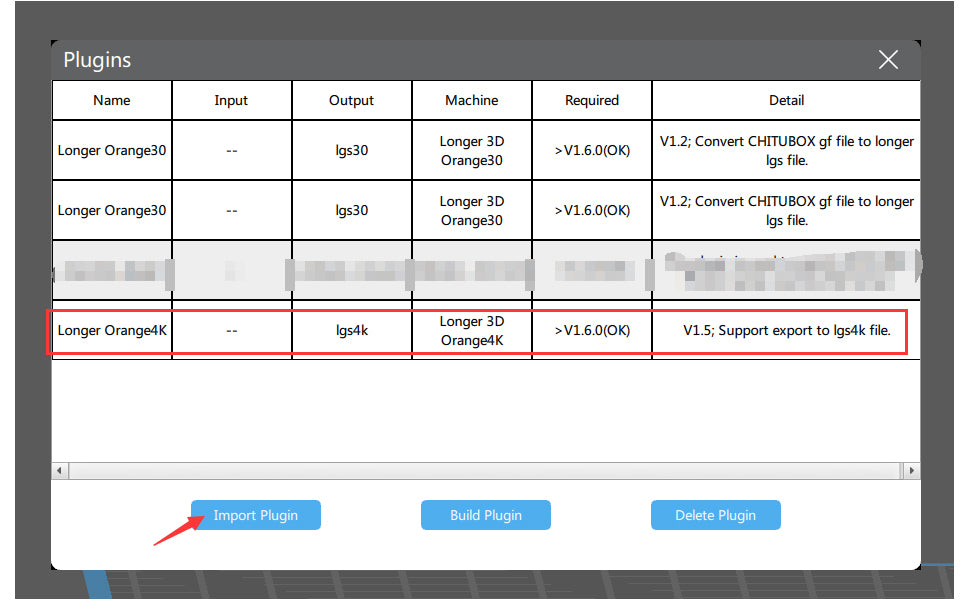
Run CHITUBOX and import the plugin. Download the plugin files for your system:
Longer3D-Orange4K-Linux-V1.5.CHpluginLonger3D-Orange4K-macOS-V1.5.CHpluginLonger3D-Orange4K-Windows32bit-V1.5.CHpluginLonger3D-Orange4K-Windows64bit-V1.5.CHplugin
Open CHITUBOX and import the .CHplugin file from: Main Menu > Help > Plugin
Expected Result
- CHITUBOX recognizes the Orange 4K printer
- Compatible slicing files can be generated
- Orange 4K printer becomes available for all supported workflows
Important Notes
- Ensure the plugin matches your operating system
- If the plugin fails, restart CHITUBOX and re-import the file
Step 2: Import the Configuration for Orange 4K Printing Parameters
Action
Import the official Orange 4K configuration file into CHITUBOX. After importing:
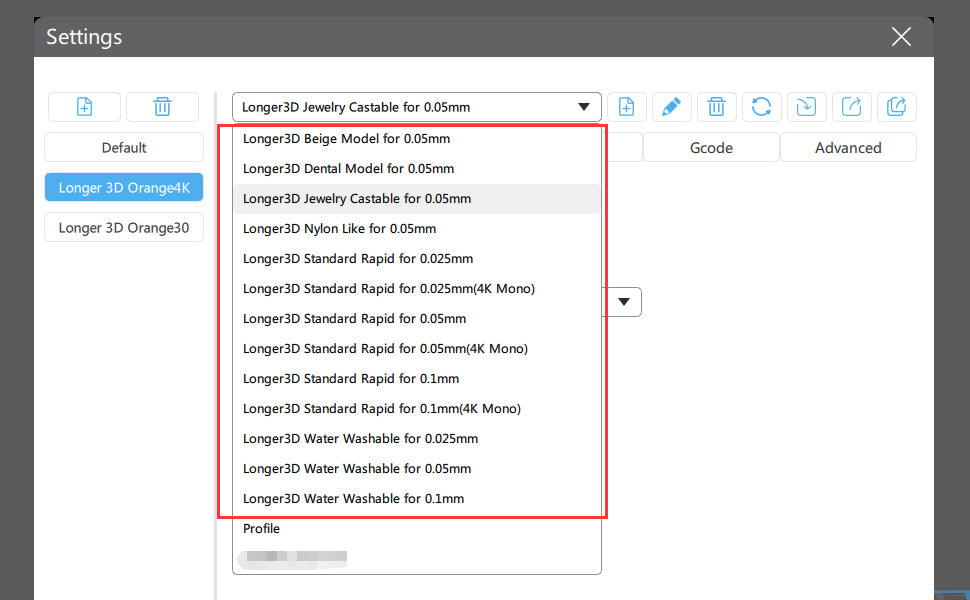
- Default printing parameters from LONGER are applied
- Resin profiles become available for reference
Note: Resin names with (4K Mono) are for Orange 4K Mono printers and use much less exposure time than 4K Color profiles.
Expected Result
- Default print parameters appear in CHITUBOX
- You can begin slicing files with correct exposure settings
- Parameters can serve as references for other resin brands
Important Notes
- Mono and Color printers use different exposure times
- Incorrect settings may cause failed prints or overexposure
- Always start with official profiles before adjusting for other resins
Understanding the Orange 4K Hardware
- 5.5-inch monochrome LCD screen
- 6480 × 3840 resolution at 10.5/31.5µm
- Dual Z-axis for stable printing
The Orange 4K Mono prints faster and with higher precision due to its monochrome LCD, making it one of the finest LCD 3D printers available. More information: Orange 4K Page
Share:
3D Printer leveling tutorial follow by steps
Longer Nano Duo & Nano Ruby Second Generation AI Laser Engraver Now Available for Pre-Order from January 2025