2026 Halloween Deals | Save Up to 40% Off

00 Days 00 Hrs 00 Min 00 Sec
Shop the offer
Products Tutorial

Products Tutorial

Learn how to get more from your LONGER machines with helpful tutorials and tips.

How to make an object positioning grid for Longer Nano & Longer Nano Pro

How to make an object positioning grid for Longer Nano & Longer Nano Pro

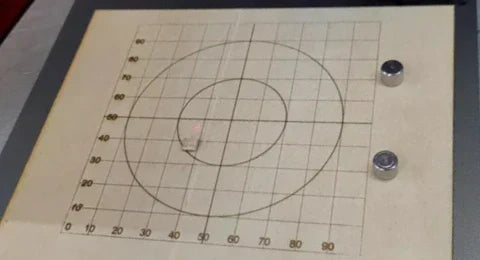
The Longer Nano and Nano Pro offer precision engraving via Galvo technology, but due to manual calibration, users may find the laser misaligned with the machine’s metal base. This guide walks you through creating a custom object positioning grid using plywood and LightBurn to ensure perfect alignment with the laser head. The engraved grid provides a consistent reference point for placing materials like business cards, improving accuracy, repeatability, and reducing material waste. Just be sure not to move the plywood after engraving, as it serves as the fixed alignment guide.
Weiterlesen
LONGER How To:Use Overcut in LightBurn for Laser Cutting

LONGER How To:Use Overcut in LightBurn for Laser Cutting

Overcut is a practical feature in LightBurn that slightly extends the laser cut path beyond the endpoint, ensuring complete separation and cleaner edges. This guide explains what Overcut does, why it matters—especially for thicker materials—and how to set it up effectively in LightBurn’s Cut Settings Editor. With step-by-step instructions and practical tips, you’ll be able to enhance the quality and precision of your laser cutting projects with ease.

Weiterlesen
LONGER How To:Offset Shapes in LightBurn

LONGER How To:Offset Shapes in LightBurn

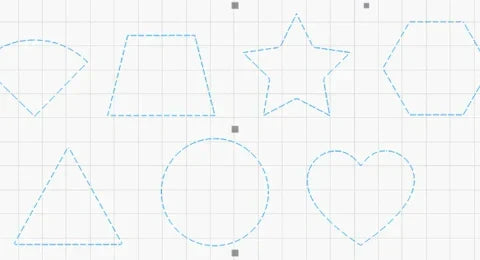
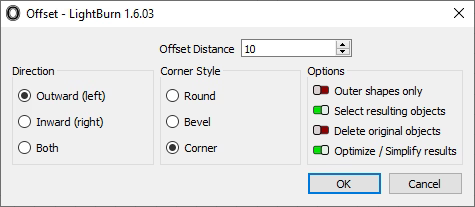
The Offset Shapes tool in LightBurn lets you generate new shapes at fixed distances from existing ones, making it ideal for creating borders, cut lines, and layered effects. This guide covers everything from accessing the tool to configuring offset distance, direction, and corner styles. You’ll also learn about advanced options like simplifying results and auto-selecting new shapes. Whether you’re engraving text or designing intricate vector art, mastering the offset feature ensures greater design precision and flexibility with your Longer laser engraver.

Weiterlesen
LONGER How To: Grouping and Ungrouping in LightBurn

LONGER How To: Grouping and Ungrouping in LightBurn

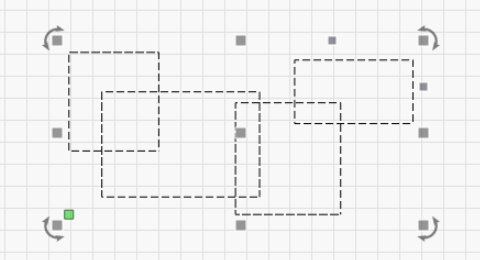
Grouping and ungrouping objects in LightBurn are essential techniques for managing laser engraving projects more efficiently. This guide walks you through how to group and ungroup elements using both mouse actions and keyboard shortcuts, and explains the practical benefits of each. Grouping helps streamline movement, alignment, and bulk editing, while ungrouping allows for precise control and detailed modifications. Mastering these functions ensures a faster, cleaner, and more productive laser design process.

Weiterlesen
LONGER How to :Use the Trace Image Feature in LightBurn

LONGER How to :Use the Trace Image Feature in LightBurn

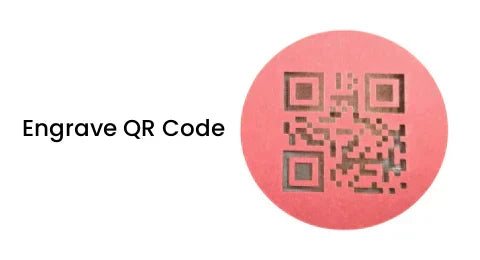
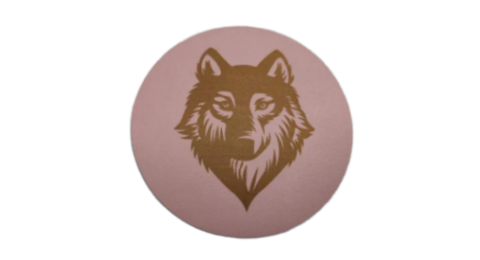
LightBurn’s Trace Image feature lets users easily convert bitmap images—like cartoons, logos, or handwritten sketches—into vector paths for laser engraving and cutting. This guide walks through each step, from importing and adjusting brightness thresholds to optimizing smoothness and vector cleanup. Perfect for anyone looking to expand their laser project designs using the Nano Pro or other LONGER engravers.

Weiterlesen
LONGER How To:Leather Engraving with Nano Pro

LONGER How To:Leather Engraving with Nano Pro

Leather engraving adds unique charm to handmade items like wallets and belts. With its precision and portability, the LONGER Nano Pro is ideal for laser engraving leather. This guide walks you through the full process—from setup and design prep to LightBurn settings and safety tips—so you can achieve high-quality, personalized results with ease.

Weiterlesen
LONGER How To: Test Material Parameters in LightBurn with the Material Test Tool

LONGER How To: Test Material Parameters in LightBurn with the Material Test Tool

The Material Test feature in LightBurn helps laser users quickly determine the optimal engraving or cutting settings for different materials. This guide covers step-by-step instructions—from accessing the tool and configuring test matrices to previewing, running tests, and analyzing results. Whether you need to tweak power, speed, interval, or passes, this tool streamlines calibration and enhances output quality with less trial and error. Perfect for both beginners and advanced users aiming for precise, consistent results.

Weiterlesen