
Longer Laser B1 and Longer Ray5 are versatile laser engravers that support both engraving and cutting on various materials. While many users choose LightBurn for laser projects, some creators prefer LaserGRBL because it is free and provides useful image processing features.
This guide explains how to use LaserGRBL to convert images into vector files and create engraving or cutting projects with Longer Laser B1 and Ray5 laser engravers.
Why Use LaserGRBL for Image Cutting?
LaserGRBL is a free laser engraving software that is optimized for processing engraving images. It provides tools for adjusting image effects and converting images into vector paths.
Although LaserGRBL has some limitations compared with professional software, it can still convert image files into SVG vector files, allowing users to create laser cutting projects from image designs.
Step 1: Import the Image into LaserGRBL
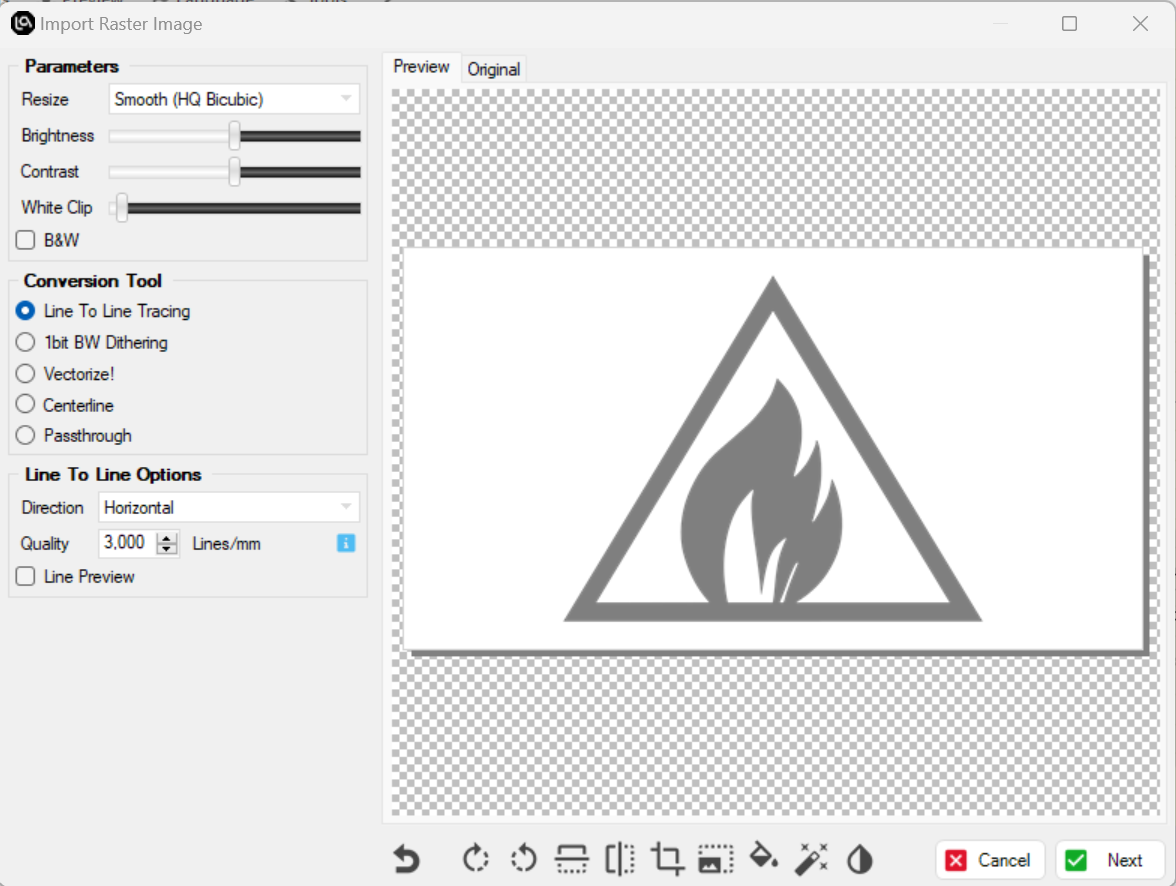
Open LaserGRBL and import the image you want to engrave or cut. After loading the image, the image processing settings will appear in the center of the interface.
Step 2: Adjust Image Settings
Before vector conversion, adjust the image parameters to improve the processing result. Main settings include:
- Brightness
- Contrast
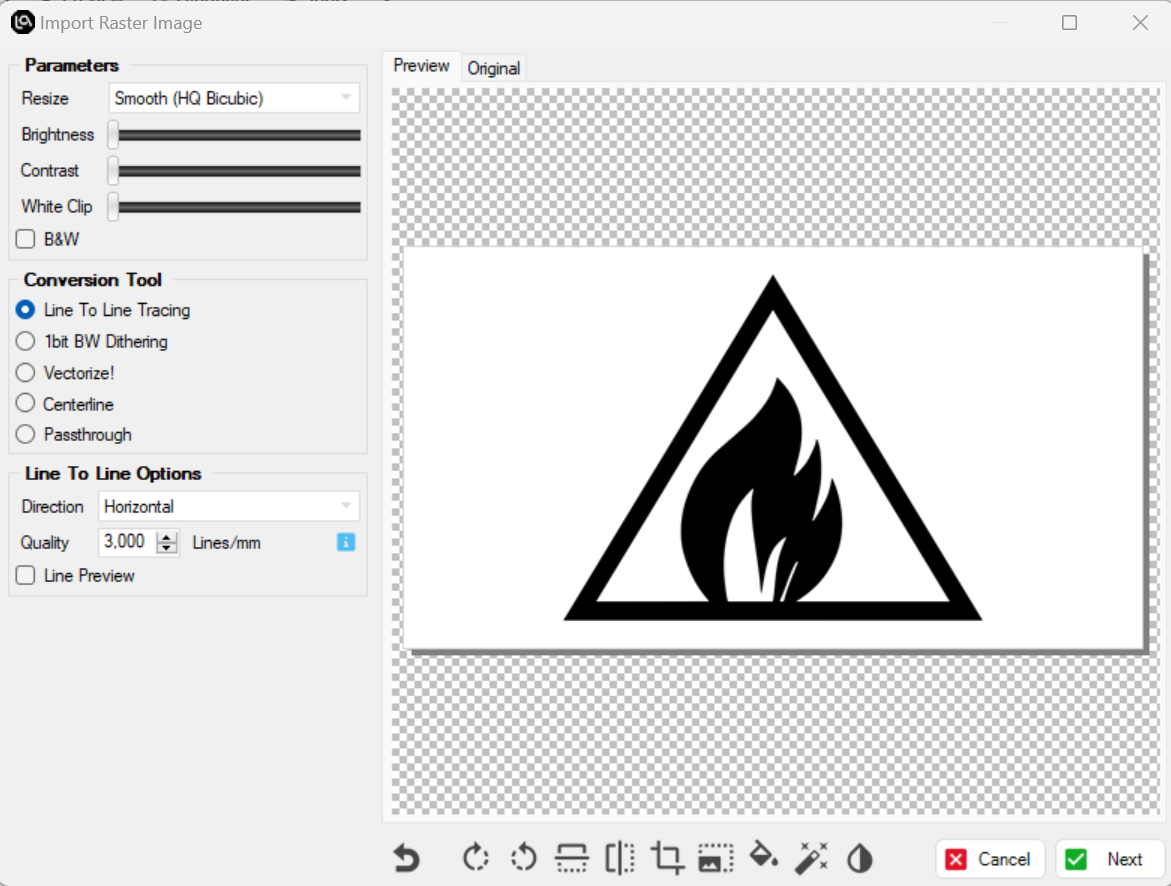
Adjust these values until the image becomes darker and closer to black. A clearer black-and-white contrast helps LaserGRBL recognize the image outline more accurately during vector conversion.
Step 3: Convert the Image into a Vector File
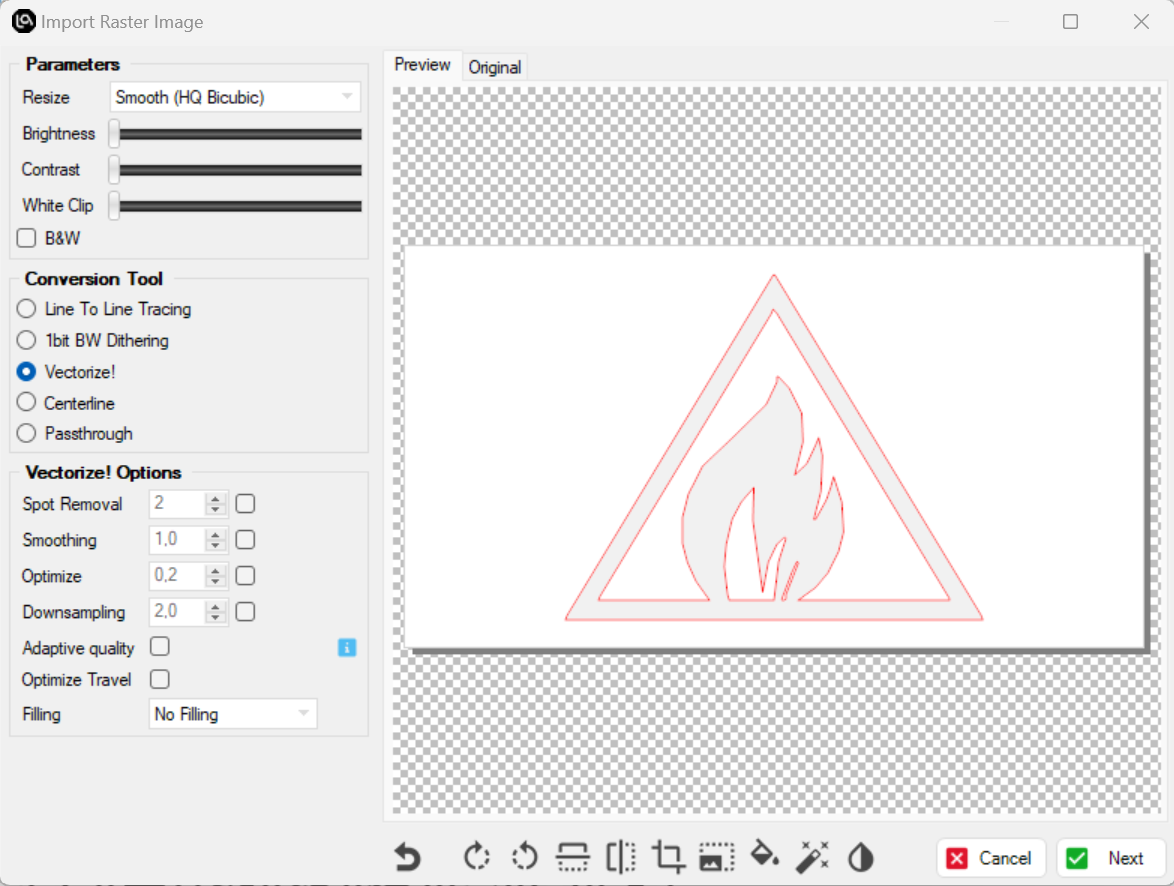
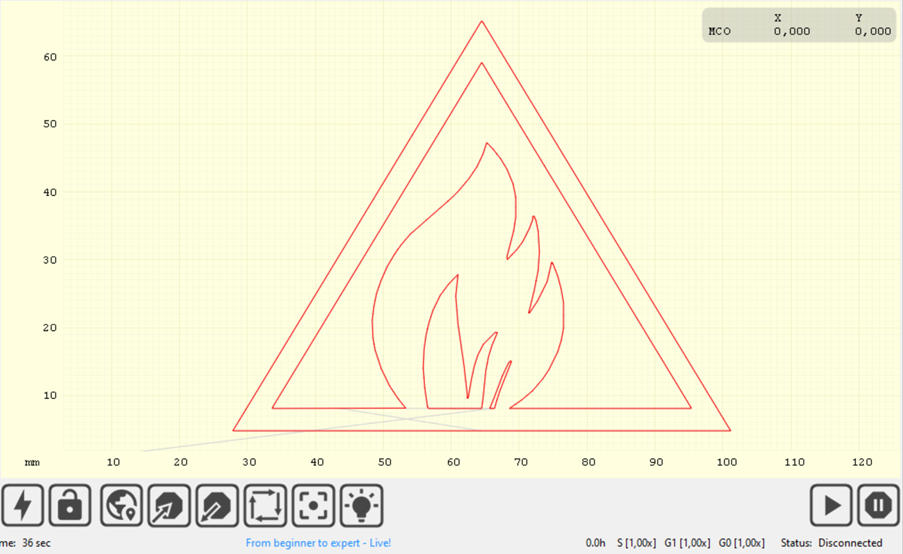
After setting the engraving parameters, click with mouse on "Vectorize!", then eventually adjust Brightness and Contrast if necessary. Once done, click "Next".
Step 4: Set Cutting and Engraving Parameters
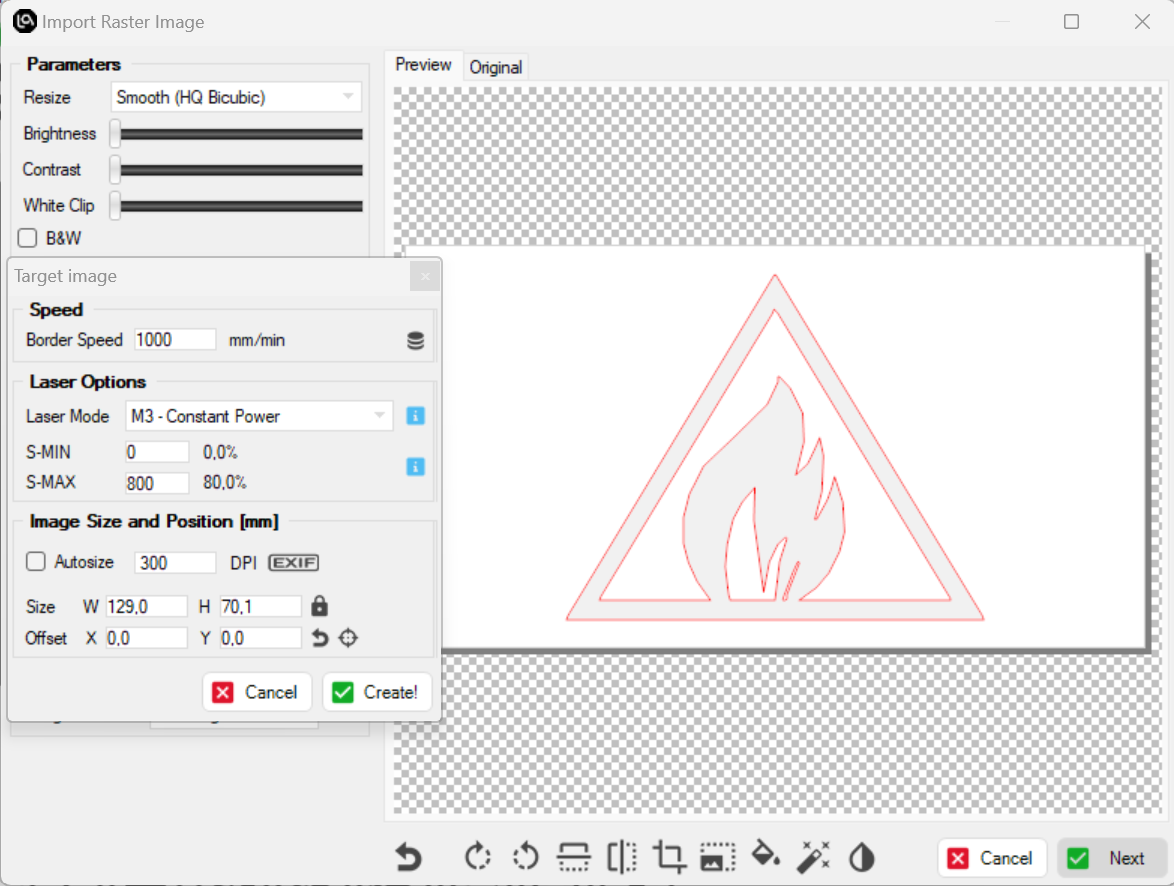
In the screen that opens, define the cutting parameters, such as speed, power, and size. Once done, click "Create!". Remember that, depending on the speed and power set, an engraving or a cut will be made, always based on the same vector file.
Step 5: Export and Start the Laser Job
At this point, the file will be ready to run. Save Gcode to export the working file to the microSD of Longer Laser B1 and Ray5, then proceed to start working on Longer Laser B1 and Ray5. Alternatively, you can connect Longer Laser B1 and Ray5 via USB cable to LaserGRBL to do the job directly.
Conclusion
Using LaserGRBL with Longer Laser B1 and Ray5 provides a simple way to process images for laser engraving and cutting. By converting images into vector paths, users can create more flexible projects from graphic designs.
Although LightBurn remains a popular choice for many laser users, LaserGRBL offers a free and practical option for creators who want to explore image engraving and cutting with Longer laser engravers.
Share:
LONGER Research: Exploring Longer B1 20W Laser Engraving for Smartphone Customization
Lightburn WiFi Bridge - Longer Nano