
Firmware updates help improve the performance and stability of laser engravers. For the LONGER Nano Duo, keeping the firmware up to date ensures that the machine can use the latest improvements and optimized functions.
This guide explains how to update the Nano Duo firmware using an SD card.
Step 1: Download the Latest Firmware
First, download the latest Nano Duo firmware file from the official LONGER website. After downloading:
- Save the firmware file to an SD card.
- Make sure the file is stored correctly before starting the update.

Step 2: Insert the SD Card
- Turn on the Nano Duo.
- Insert the SD card into the slot on the side of the machine.
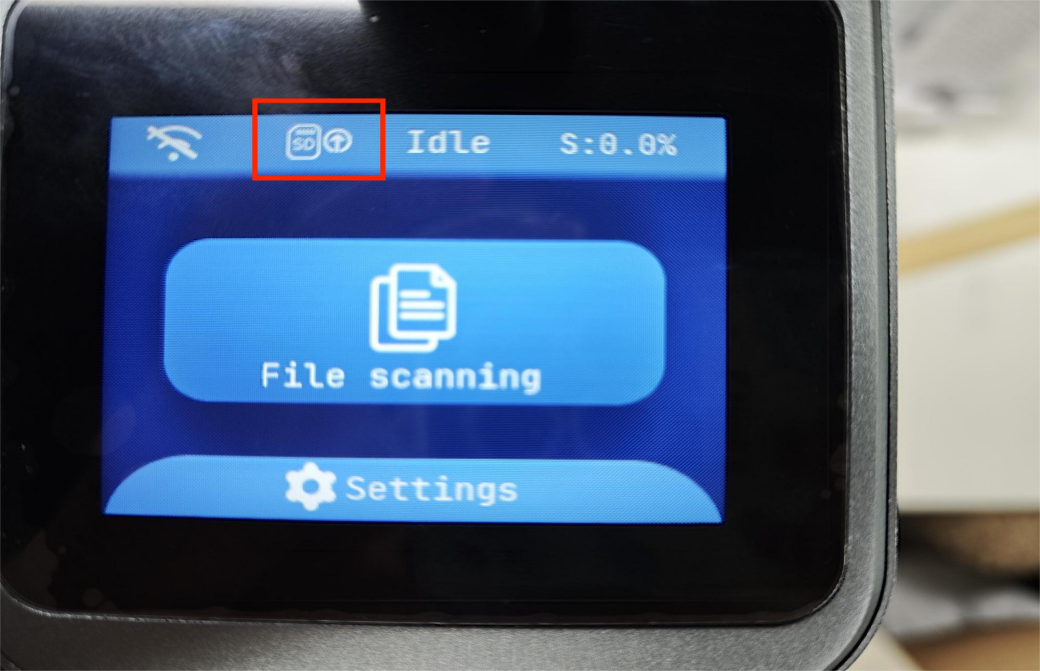
- Check the main screen.
When the screen displays an upward arrow with “SD”, the machine has successfully detected the firmware file.
Step 3: Open the Settings Menu
From the home screen:
- Tap the Settings icon.
- Enter the settings interface.
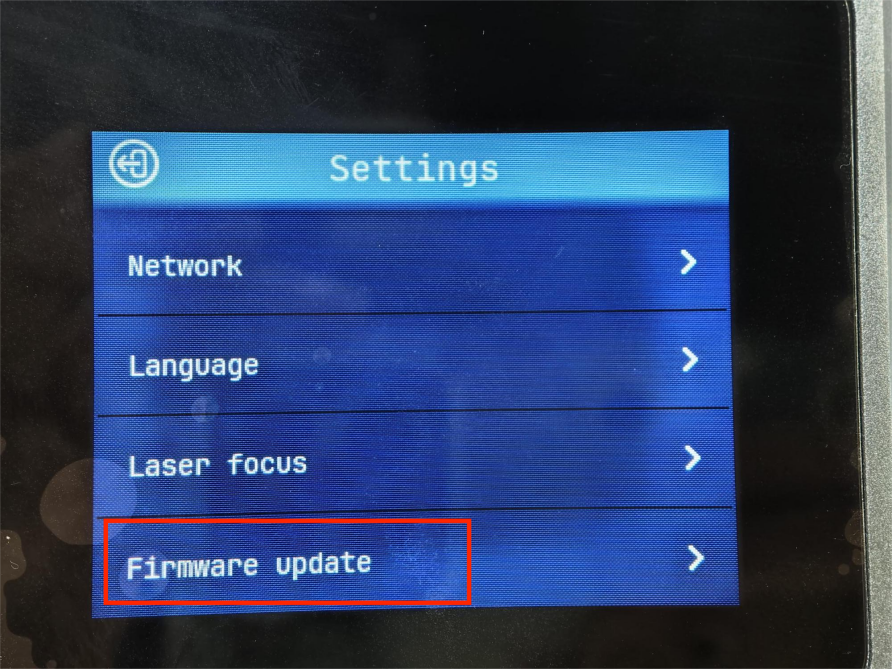
The settings menu includes basic options such as network settings, language settings, and other device functions.
Step 4: Enter the Firmware Update Page
In the settings interface:
- Tap Firmware Update.
- Enter the firmware upgrade section.
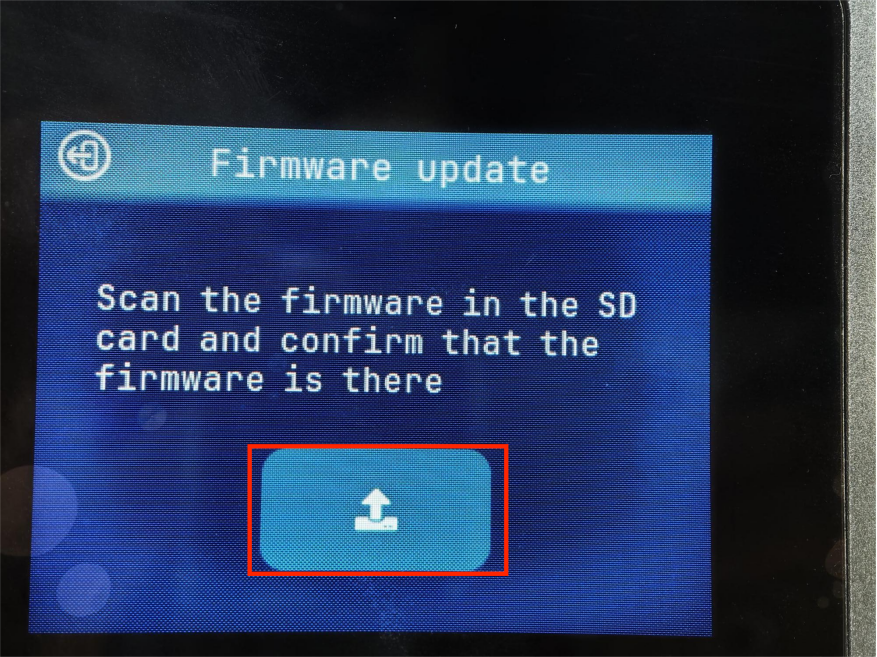
- Tap the upward arrow button to start the update process.
Step 5: Select the Component to Update
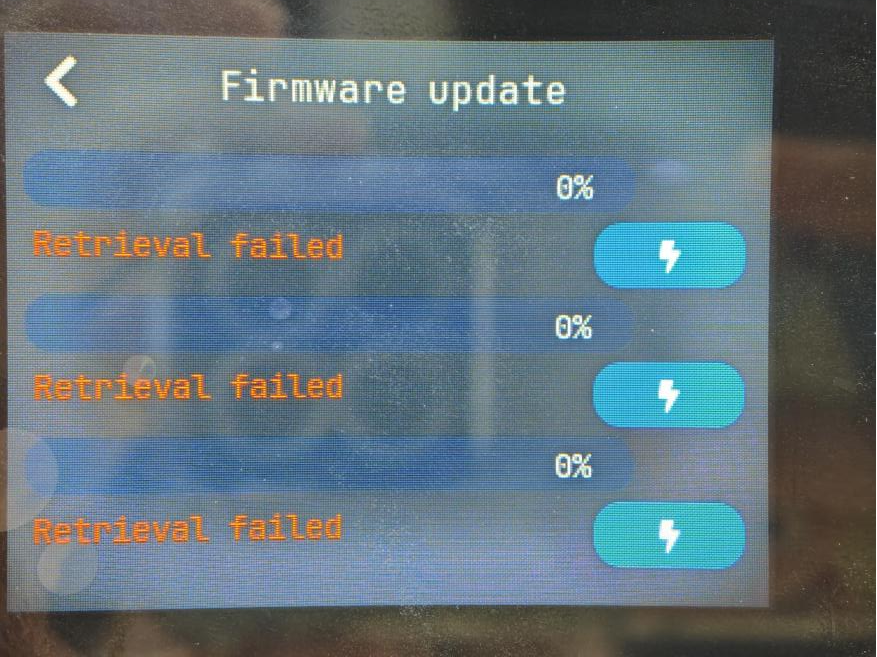
The Nano Duo firmware update interface provides three upgrade options:
- Screen: Updates the display screen component.
- Galvo: Updates the galvanometer component.
- Main Control: Updates the main control board.
Select the component you want to update, and the system will begin the upgrade process.
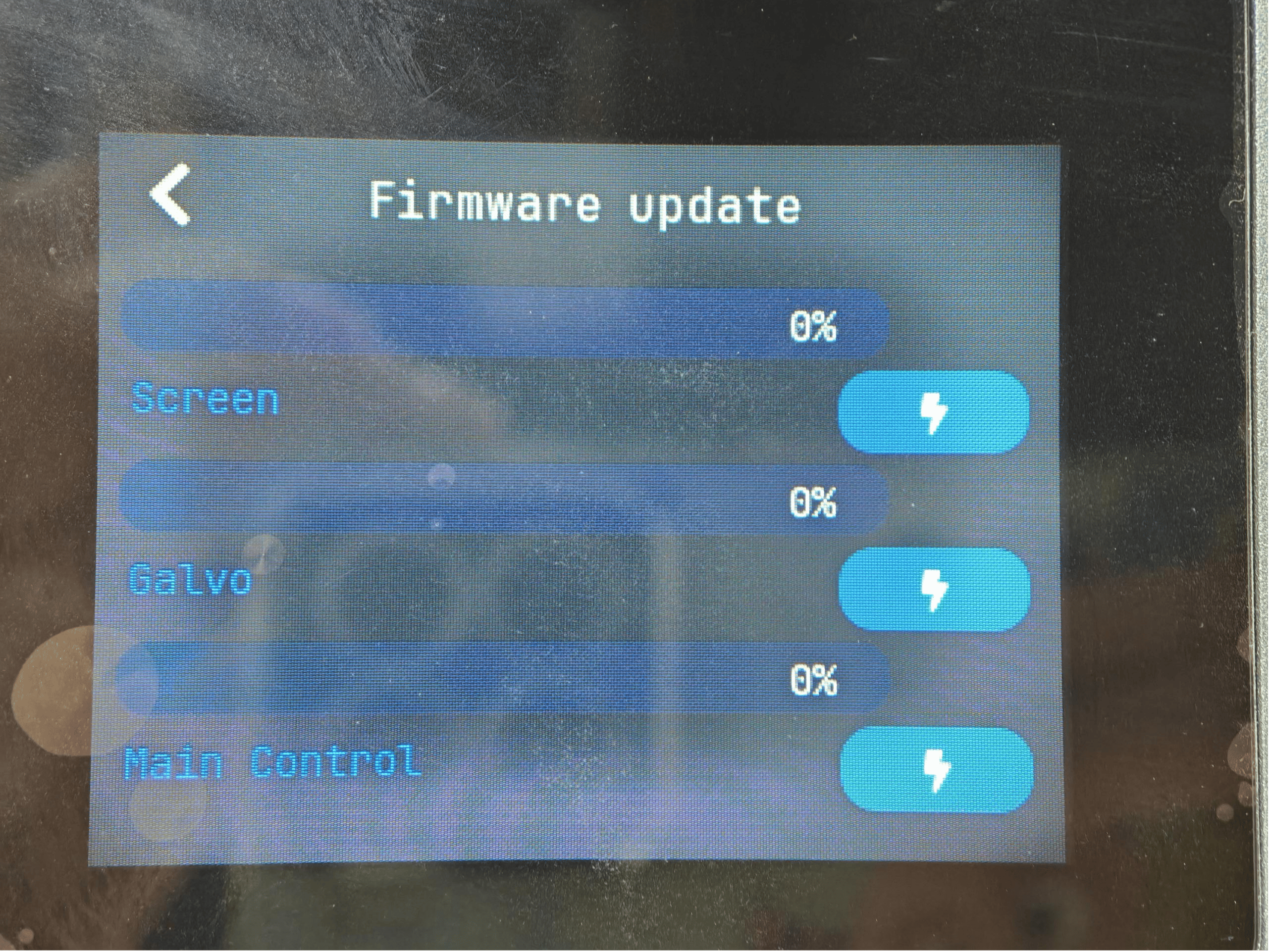
Select the component you wish to upgrade, and the process will begin.
Note: If the SD card does not contain new firmware files for any component, the system will display: “Retrieval failed”. This means there is no available update file detected for that component.
Conclusion
Updating the firmware on the LONGER Nano Duo helps maintain stable performance and ensures the machine can use the latest improvements. By following the correct update steps, users can easily upgrade the screen, galvo system, or main control board through the firmware update interface.
Regularly checking for firmware updates can help keep your laser engraver running smoothly and efficiently.
Share:
更详细的教程:如何解决 Lightburn V2.0 引起的问题
LONGER How To:LightBurn Path Optimization Settings